Editing a Submitted Task
Made a mistake in a task you've just submitted? You can fix it yourself and resubmit, as long as nobody at the business has started working with your answer yet.
You can edit these tasks after submitting them:
- Form
- Nominate bank account
- TFN declaration
- Visa details
Each heading on this page has its own link. Hover over a heading and click the # to copy it.
Edit and resubmit a task
- Open the workflow and click the task you submitted. If it can still be changed, you'll see an Edit button under your answers.
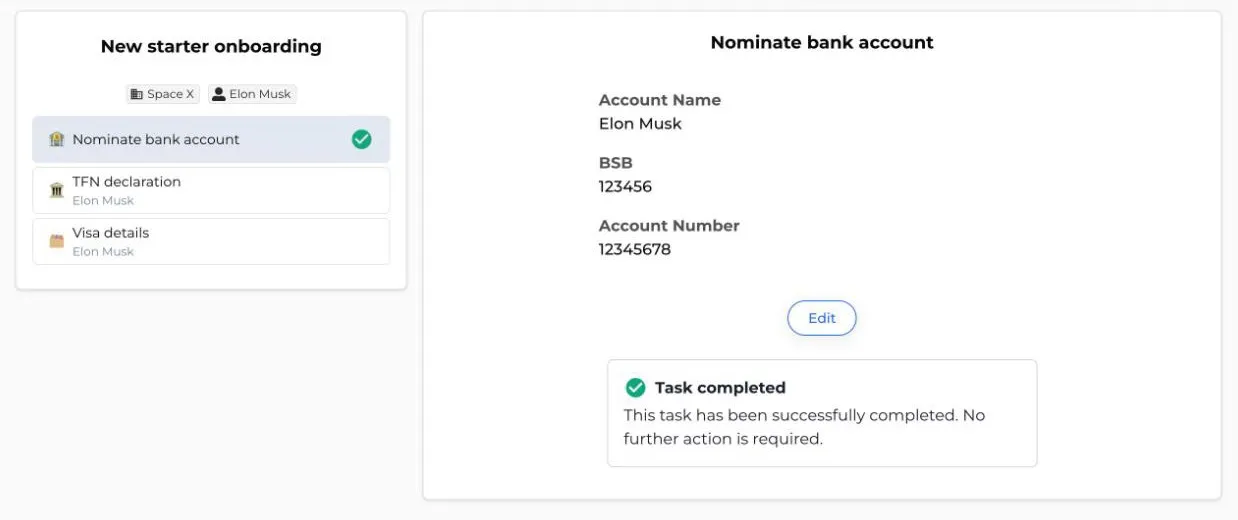
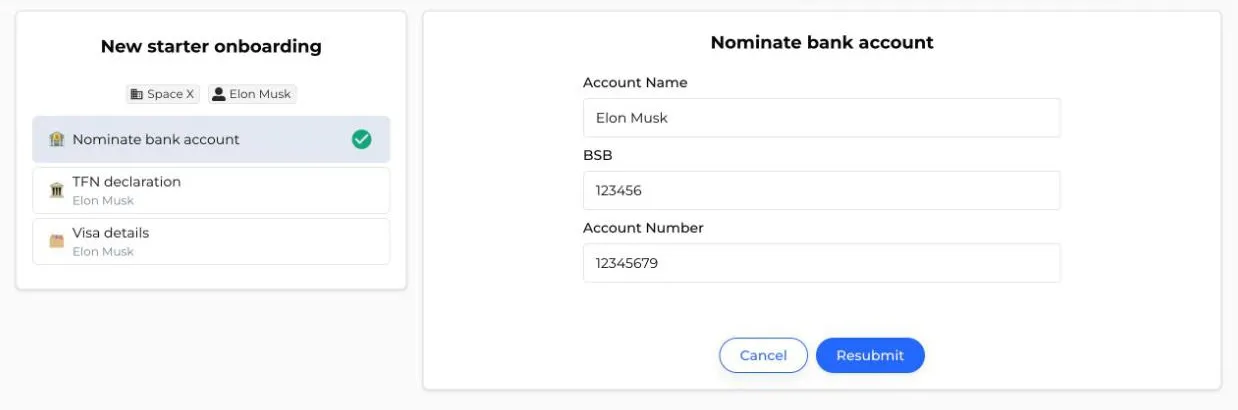
- Click Edit. The task opens with your current answers already filled in. Change what you need to.
-
Click Resubmit to save your changes, or Cancel to keep your original answers.
-
Canyou saves the new answers and takes you to your next task. The task you changed now shows Task resubmitted.
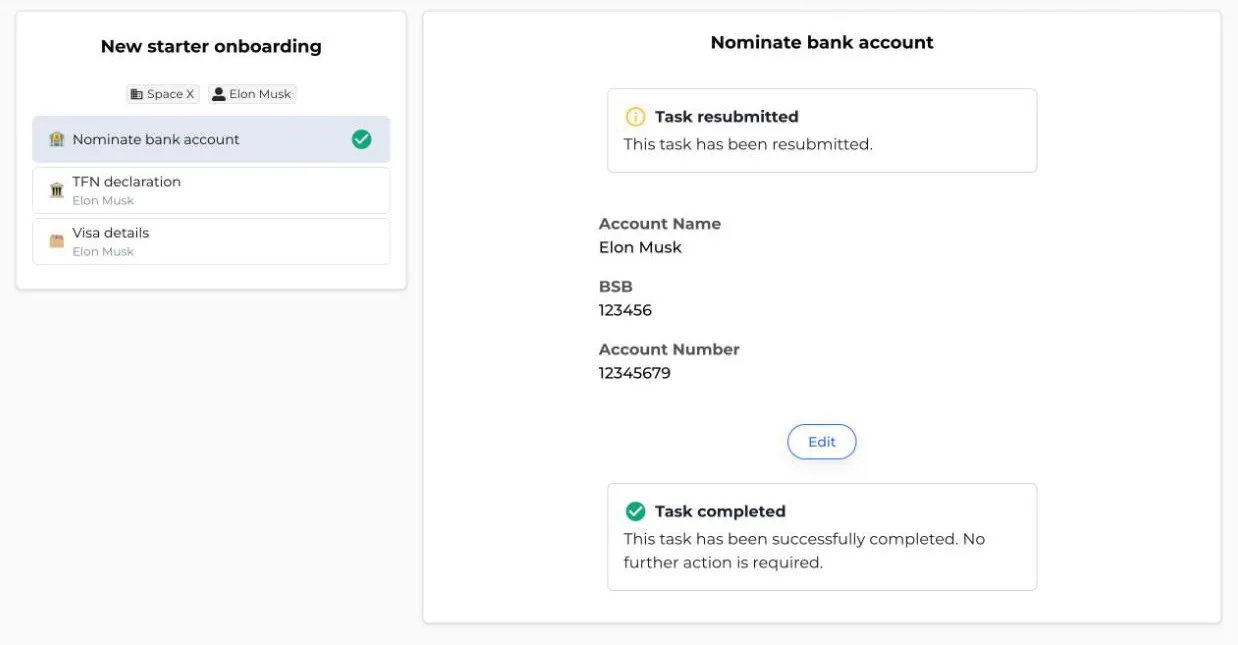
You can edit the same task more than once while the Edit button is showing.
When you can no longer edit a task
The Edit button disappears as soon as any of these happens:
- 24 hours have passed since you first submitted the task. Resubmitting doesn't restart the 24 hours.
- An admin has opened the workflow. Once someone at the business has looked at any task in it, none of its tasks can be edited.
- Your details have been sent to a connected system, such as Xero, MYOB, Deputy, Workforce One or Astute Payroll.
- The workflow has been archived or cancelled.
Only the person who submitted a task can edit it.
If the Edit button has gone and something is wrong, message an admin at your business and ask them to fix it. If you see This task can no longer be resubmitted. Please refresh the page. when you click Resubmit, the time to edit ran out while you were making changes.
What admins see
When a task has been resubmitted, admins see the Task resubmitted message on the task. The task's Access history shows a Resubmitted entry with who made the change and when.
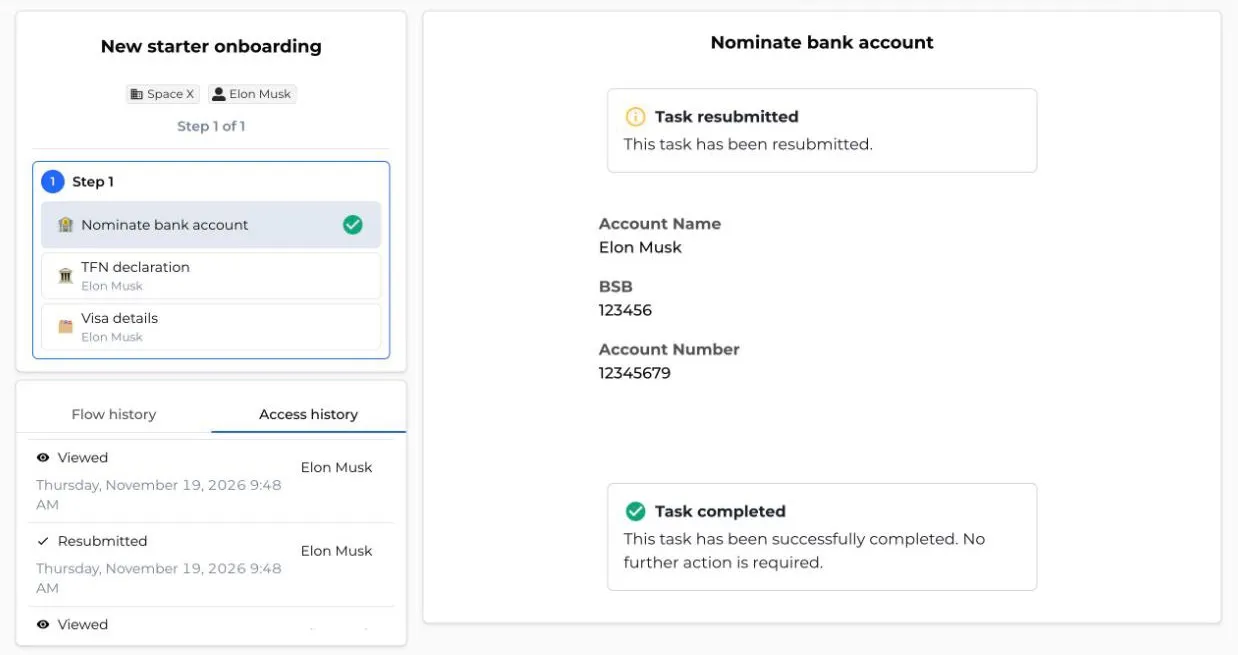
Resubmitting doesn't send the task through the workflow again:
- The workflow doesn't move back a step, and nobody is notified again.
- The task stays complete. A Visa details task goes back to waiting for an admin to finish the visa check, because the visa details have changed.
- If the business sends documents to a connected system (Automations > Document Uploads), the updated documents are sent again. In Workforce One, the new document replaces the old one instead of being added as a copy.
Common questions
"Why can't I see the Edit button?" It shows only on the four task types above, and only while none of the conditions in When you can no longer edit a task has happened. The most common reason is that an admin has already opened the workflow.
"Can an admin edit a task I submitted?" No. Only the person who submitted the task can edit it. Once editing has closed, an admin and the worker sort out any changes between them.
"Does editing a task give me another 24 hours?" No. The 24 hours are counted from when you first submitted the task.
NextLearn about the different task types